Connect your AI (MCP)
Use FDA Intel in VS Code
VS Code supports remote MCP servers in GitHub Copilot's agent mode.
- 1
Start a plan and copy your MCP address
Sign in to FDA Intel, open Account → AI & API and start Standard or Premium. The page shows your MCP address with a copy button.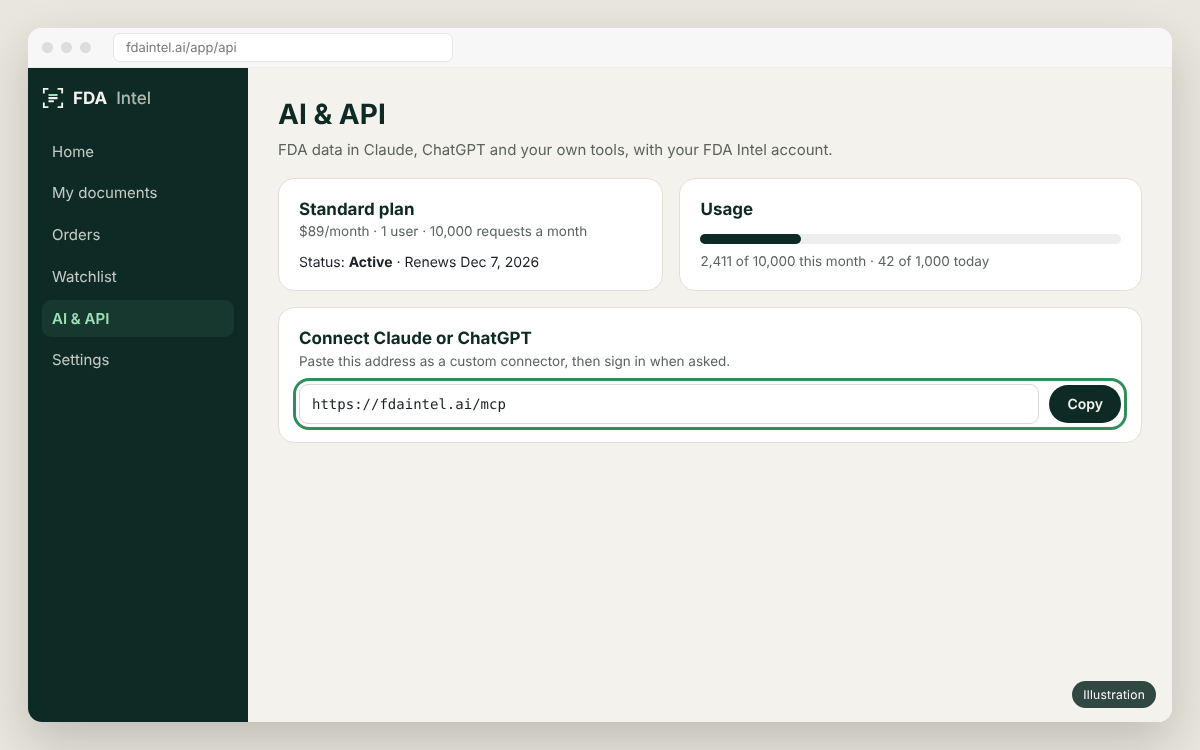
Illustration of the app's screen. Menu names can differ slightly between versions. - 2
Add the server
Open the Command Palette, run MCP: Add Server, choose HTTP, pastehttps://fdaintel.ai/mcpand name itfda-intel. Or add it to.vscode/mcp.json(workspace) or your user settings: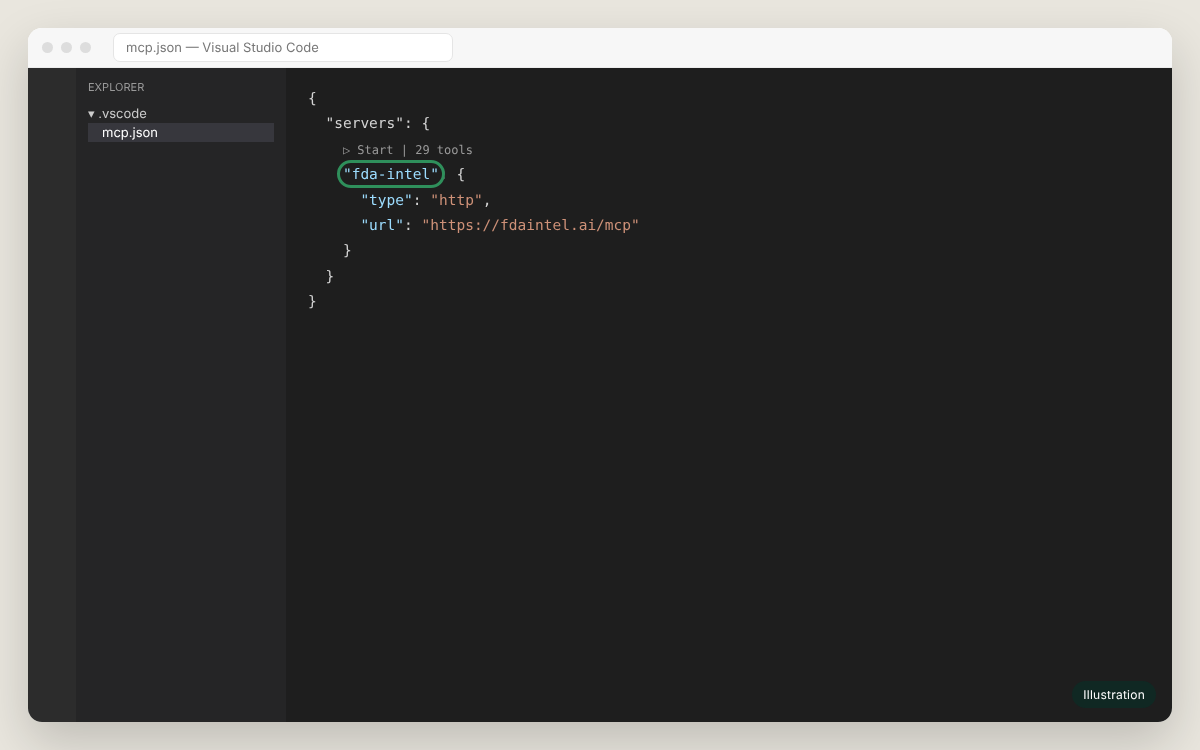
Illustration of the app's screen. Menu names can differ slightly between versions. .vscode/mcp.json{ "servers": { "fda-intel": { "type": "http", "url": "https://fdaintel.ai/mcp" } } } - 3
Start it and sign in
Click Start above the entry. VS Code asks to sign in; allow it, then click Allow on the FDA Intel page. - 4
Ask in agent mode
Open Copilot Chat, switch to Agent, check that the FDA Intel tools are ticked in the tools picker, and ask.
Something not working?
See the FAQ, or email us with the time and the client you used. Never send your API key.