Connect your AI (MCP)
Use FDA Intel in Cursor
Add one entry to Cursor's MCP settings.
- 1
Start a plan and copy your MCP address
Sign in to FDA Intel, open Account → AI & API and start Standard or Premium. The page shows your MCP address with a copy button.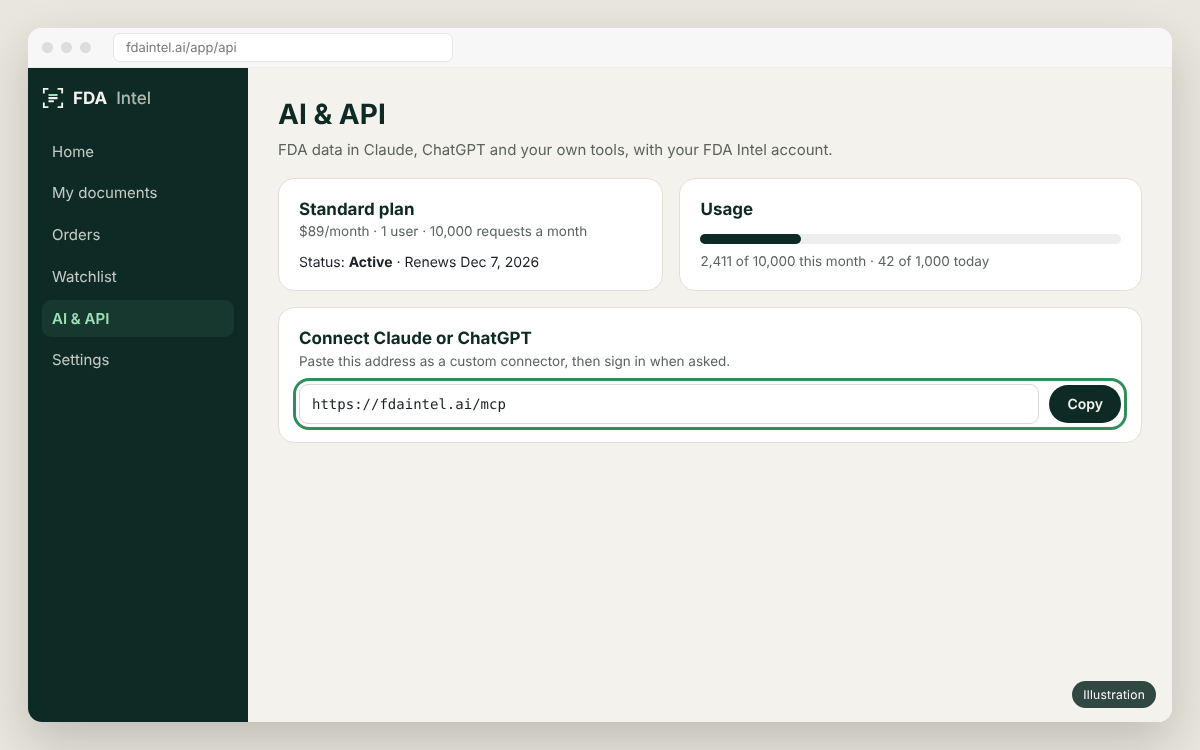
Illustration of the app's screen. Menu names can differ slightly between versions. - 2
Open the MCP settings
In Cursor open Cursor Settings → MCP (Tools & Integrations in newer versions) and click Add Custom MCP (or New MCP Server). This opens~/.cursor/mcp.json.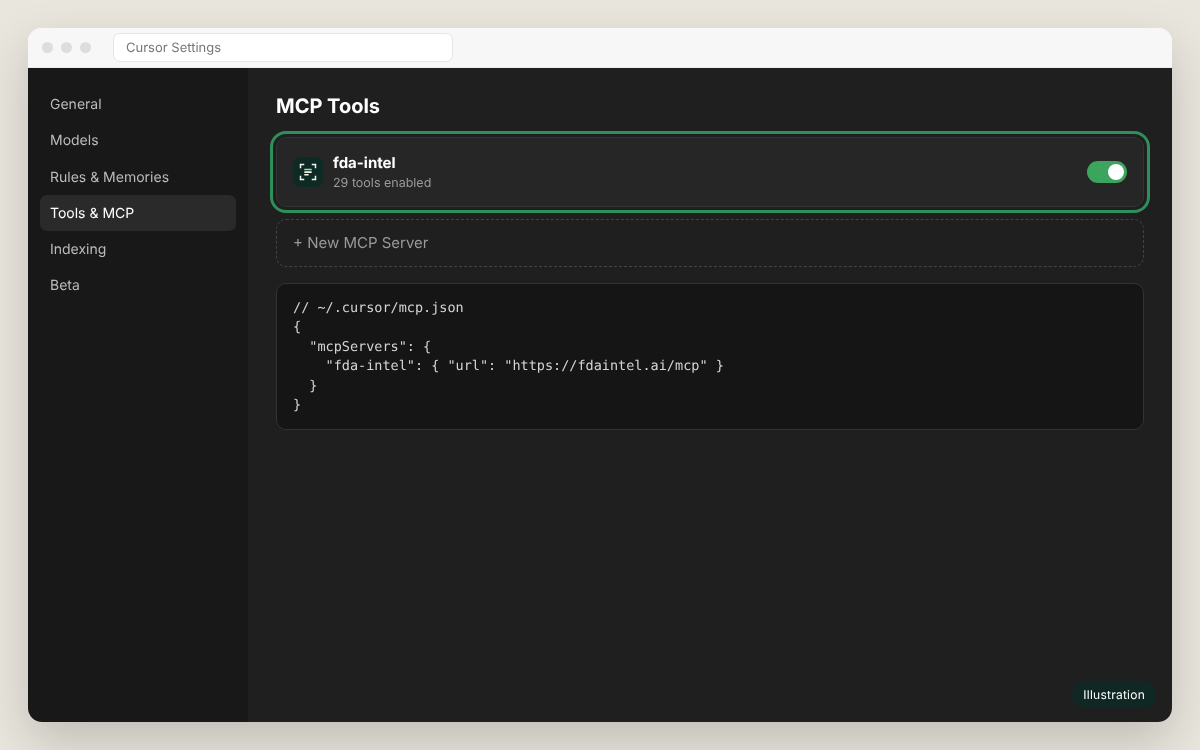
Illustration of the app's screen. Menu names can differ slightly between versions. - 3
Add FDA Intel
Add the entry and save. Cursor shows the server; click Connect (or Needs login) to sign in to FDA Intel.~/.cursor/mcp.json{ "mcpServers": { "fda-intel": { "url": "https://fdaintel.ai/mcp" } } } - 4
Ask in the agent
Open the chat in Agent mode and ask about a site, an investigator or a regulation. Approve the read-only tool calls, or allow them for the session.
Using an API key instead#
~/.cursor/mcp.json
{
  "mcpServers": {
    "fda-intel": {
      "url": "https://fdaintel.ai/mcp",
      "headers": {
        "Authorization": "Bearer YOUR_FDA_INTEL_API_KEY"
      }
    }
  }
}
Keep the key out of shared repositories: use the user-level file, not a project file you commit.
Something not working?
See the FAQ, or email us with the time and the client you used. Never send your API key.