Connect your AI (MCP)
Connect FDA Intel to Claude
FDA Intel is in Claude's connector directory. Connect it once and it works in claude.ai, Claude Desktop, the mobile apps and Cowork (one catalog).
- 1
Open FDA Intel in Claude's connector directory
Open FDA Intel in Claude's connector directory. Or, in Claude, go to Customize → Connectors → Browse and searchFDA Intel. - 2
Click Connect
Click Connect on the FDA Intel listing. On Team and Enterprise plans an owner may need to allow it first; members then connect with their own sign-in. - 3
Sign in to FDA Intel and allow read-only access
A FDA Intel window opens. Sign in if asked, check the app name and click Allow. The app gets read-only access; you can disconnect it at any time on your account page. You need an active Standard or Premium plan: start one on Account → AI & API.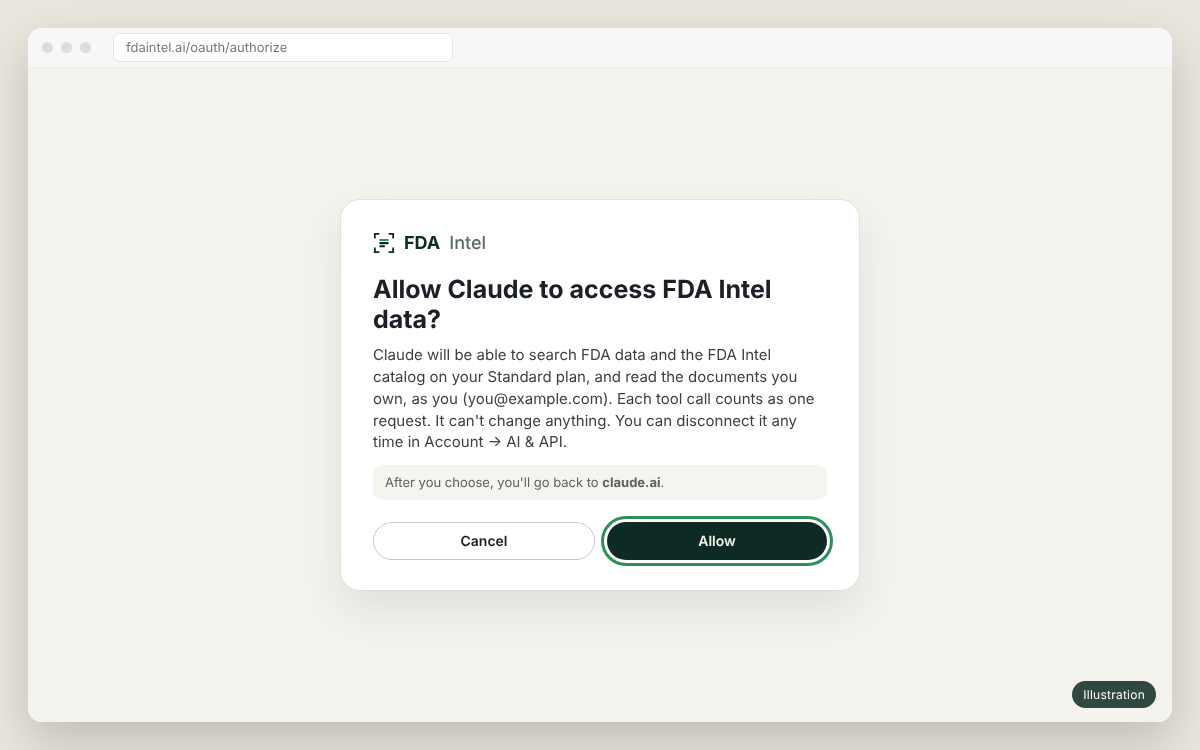
Illustration of the app's screen. Menu names can differ slightly between versions. - 4
Turn it on in a chat and ask
In a chat, open the tools menu and make sure FDA Intel is on. Ask, for example: "Give me the FDA record of FEI 3001234567: last inspection, warning letters, import alerts." Claude shows each tool it calls.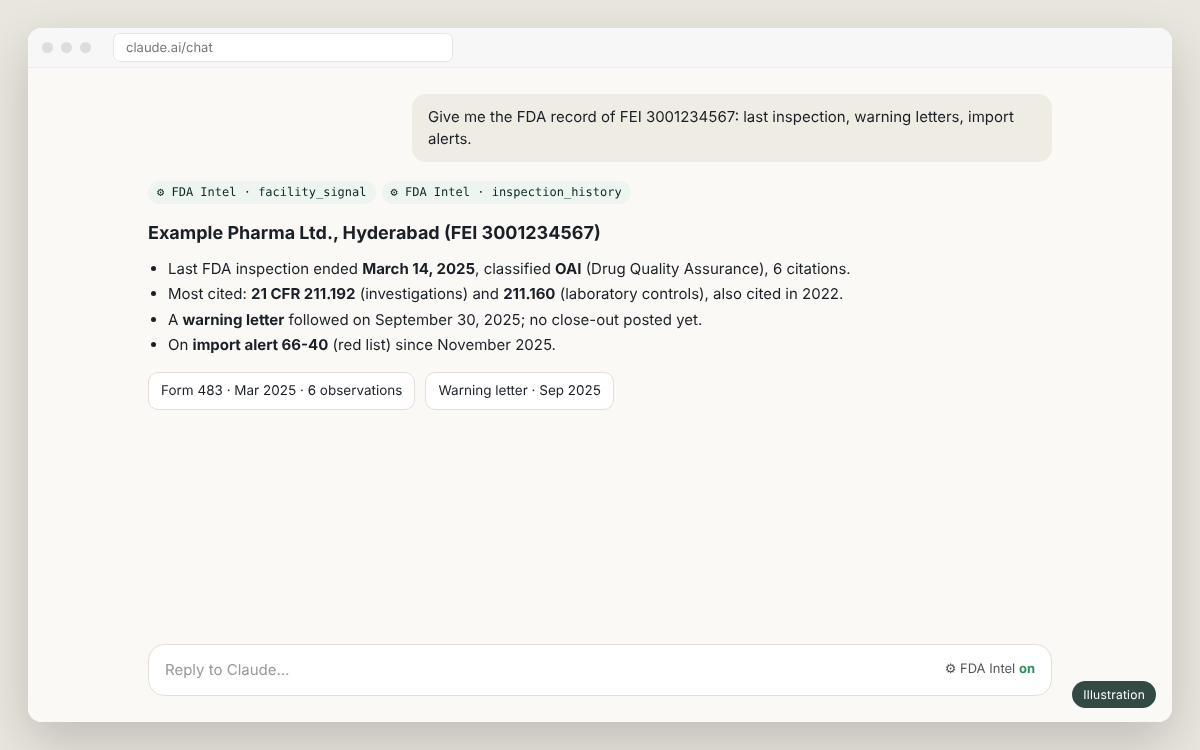
Illustration of the app's screen. Menu names can differ slightly between versions.
Other ways to connect#
Add FDA Intel as a custom connector
- 1
Start a plan and copy your MCP address
Sign in to FDA Intel, open Account → AI & API and start Standard or Premium. The page shows your MCP address with a copy button.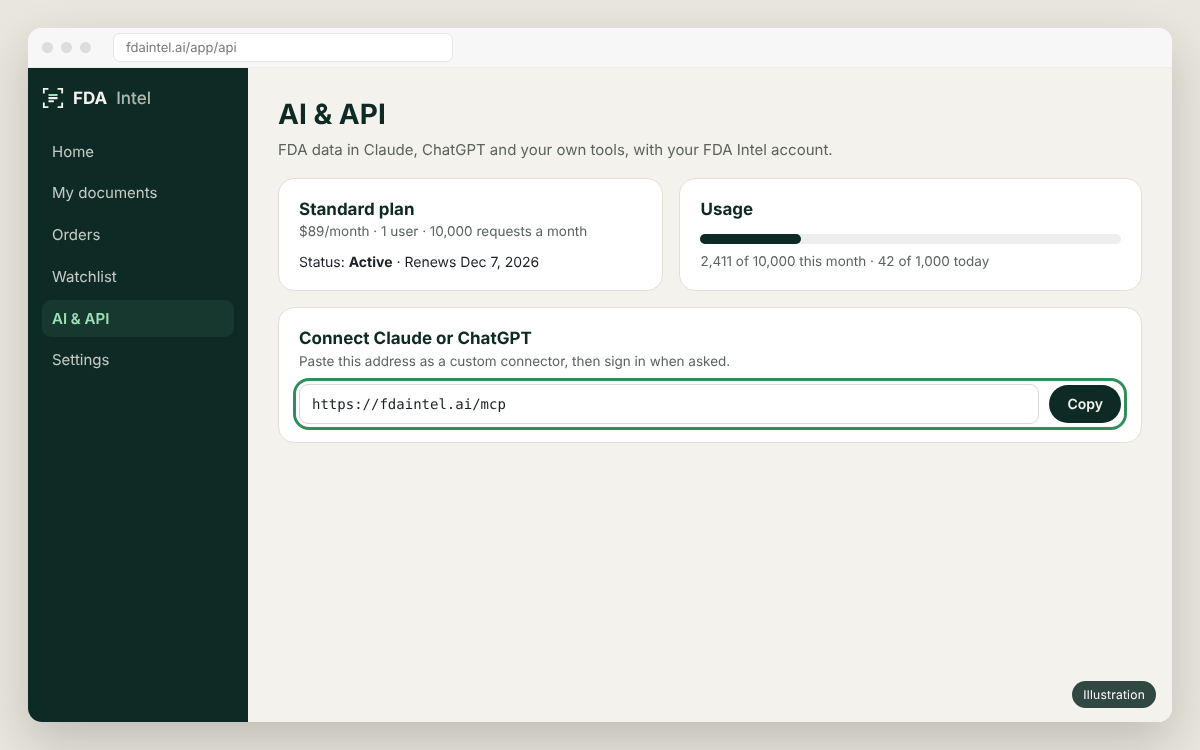
Illustration of the app's screen. Menu names can differ slightly between versions. - 2
Add a custom connector in Claude
In Claude open Settings → Connectors and click Add custom connector. Name:FDA Intel. Remote MCP server URL:https://fdaintel.ai/mcp. Click Add. On Team and Enterprise plans an owner adds it first under organisation settings; members then connect with their own sign-in.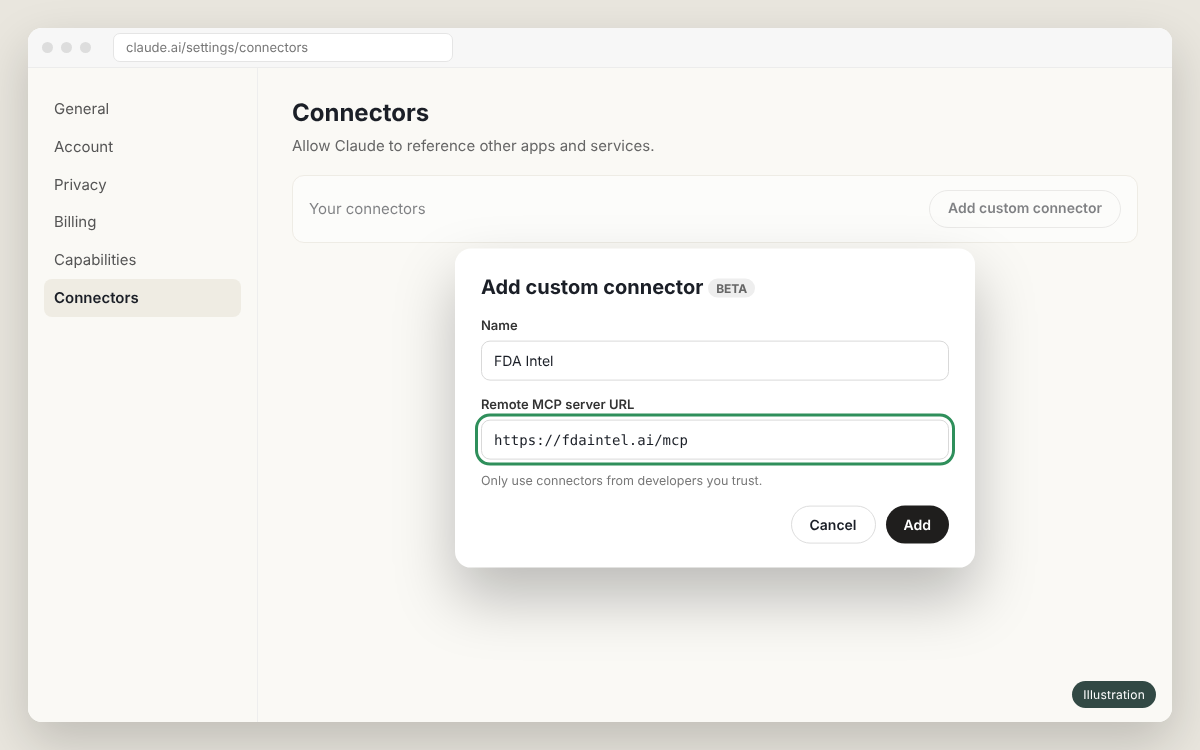
Illustration of the app's screen. Menu names can differ slightly between versions. - 3
Sign in to FDA Intel and allow read-only access
Click Connect next to FDA Intel. A FDA Intel window opens. Sign in if asked, check the app name and click Allow. The app gets read-only access; you can disconnect it at any time on your account page.Illustration of the app's screen. Menu names can differ slightly between versions.
In Claude Code: claude mcp add --transport http fda-intel https://fdaintel.ai/mcp, then /mcp to sign in (Claude Code guide). For Cursor, VS Code and other MCP clients, see other MCP clients.
Something not working?
See the FAQ, or email us with the time and the client you used. Never send your API key.