Connect your AI (MCP)
Use FDA Intel in Claude Code
One command adds the server; one sign-in connects it.
- 1
Start a plan and copy your MCP address
Sign in to FDA Intel, open Account → AI & API and start Standard or Premium. The page shows your MCP address with a copy button.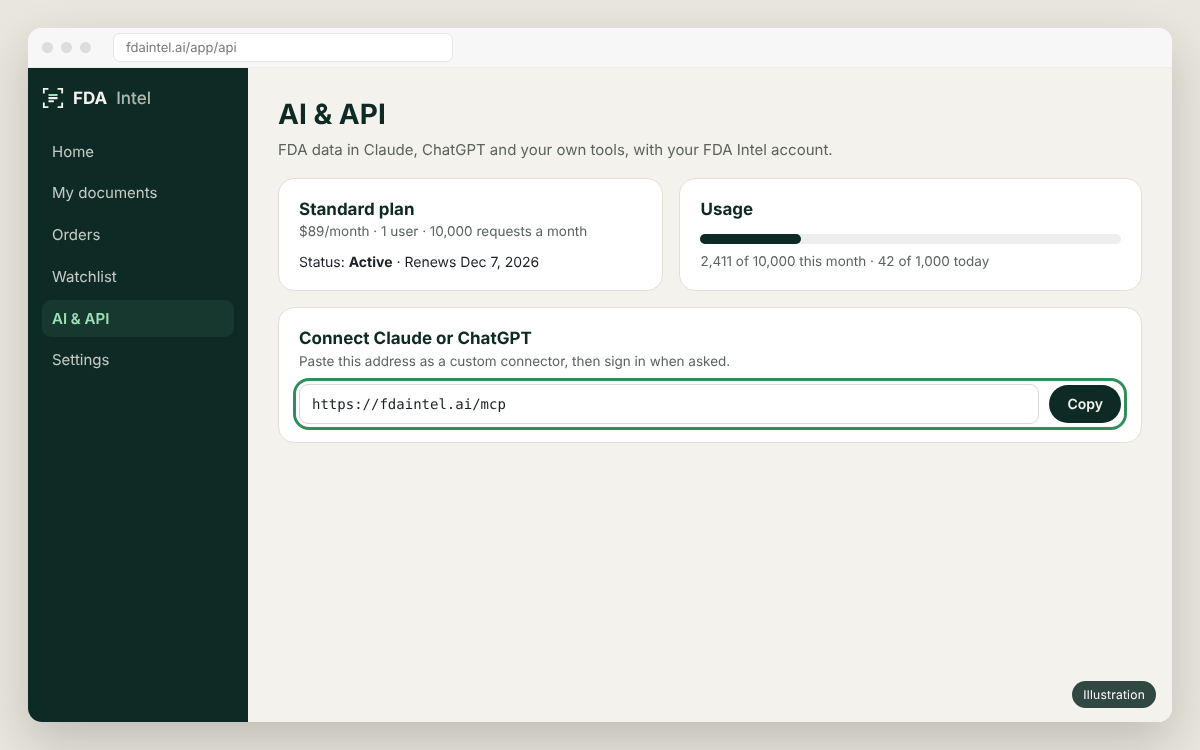
Illustration of the app's screen. Menu names can differ slightly between versions. - 2
Add the server
In a terminal, run the command. Add--scope userto use it in every project.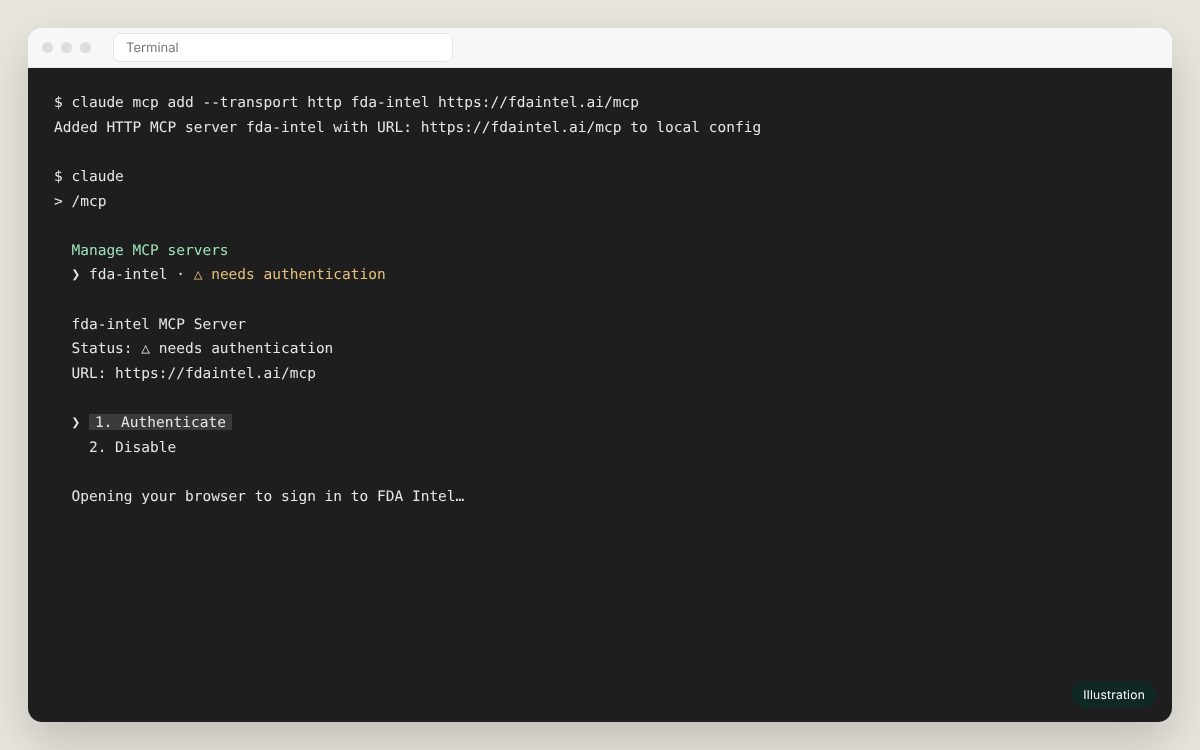
Illustration of the app's screen. Menu names can differ slightly between versions. Terminalclaude mcp add --transport http fda-intel https://fdaintel.ai/mcp - 3
Authenticate
Startclaude, type/mcp, select fda-intel and choose Authenticate. Your browser opens the FDA Intel sign-in; click Allow. - 4
Ask
For example: "Using fda-intel, list OAI inspections of sterile drug sites in India since 2024 and the CFR sections cited."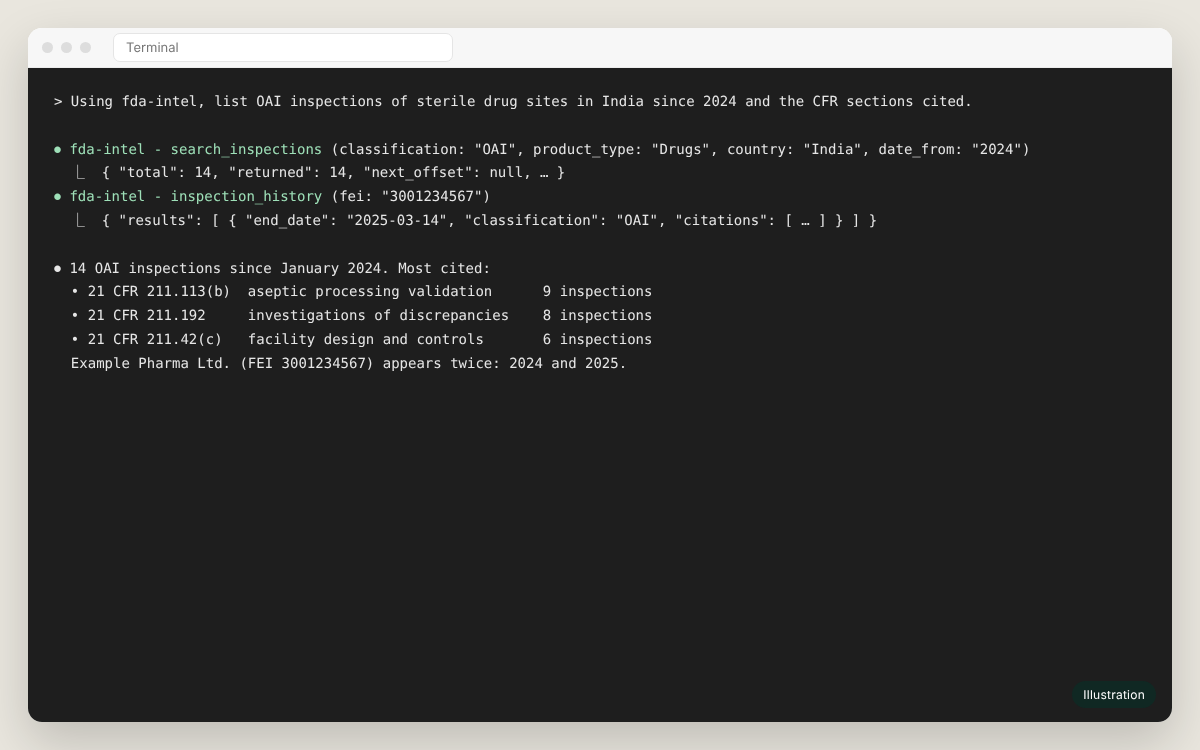
Illustration of the app's screen. Menu names can differ slightly between versions.
Using an API key instead#
For CI or a headless machine, send an API key as a header:
Terminal
claude mcp add --transport http fda-intel https://fdaintel.ai/mcp \
  --header "Authorization: Bearer $FDA_INTEL_API_KEY"
Something not working?
See the FAQ, or email us with the time and the client you used. Never send your API key.